WebP vs PNG vs AVIF: Pick the Wrong Format, Tank LCP
Choosing the wrong image format silently inflates LCP by seconds. Compare WebP, PNG, AVIF, and JPEG for real performance benchmarks.
A 2.4MB Hero Image Just Pushed Your LCP Past 6 Seconds
You open Chrome DevTools on a client's homepage, navigate to the Network tab, filter by "Img," and there it is — hero-banner.png, 2.4 megabytes, loading synchronously above the fold. On a 4G connection (the global average mobile speed), that single image takes 4.8 seconds to download. The Largest Contentful Paint fires at 6.1 seconds, well into Google's "poor" threshold. The page looks beautiful. The Lighthouse score does not.
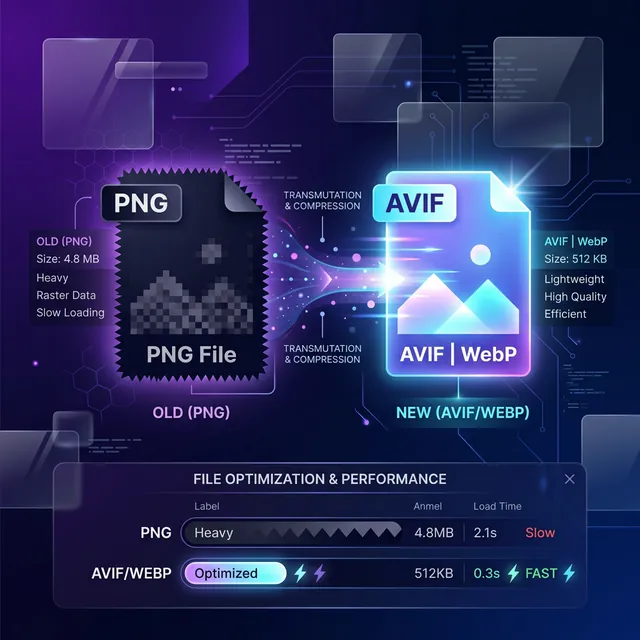
This scenario repeats across thousands of production sites because developers treat image format selection as an afterthought. "Export as PNG" from Figma, upload, ship. But the difference between serving that hero image as an uncompressed PNG versus an optimized WebP isn't a minor file size reduction — it's a 60–85% reduction that directly moves your LCP from "poor" to "good."
Image format selection is a performance engineering decision with measurable Core Web Vitals impact. This article covers the actual compression characteristics, browser support boundaries, and decision framework for choosing between JPEG, PNG, WebP, and AVIF in production.
Key Takeaways
- WebP delivers 25–35% smaller files than JPEG at equivalent visual quality and supports transparency — it's the default choice for 90% of web images today.
- AVIF achieves 40–50% smaller files than JPEG but has slower encoding times and incomplete browser support (no IE11, limited Safari before 16.4).
- PNG is lossless and supports transparency but produces files 5–10x larger than WebP for photographic content — use it only for icons, logos, and graphics with sharp edges.
- JPEG remains universally compatible but lacks transparency and produces visible artifacts below quality 60 — it's being replaced by WebP in modern stacks.
- Serving images in the correct format directly reduces LCP because the browser downloads fewer bytes before painting the largest visible element.
The Compression Numbers That Actually Matter
Theory is cheap. These are real-world compression benchmarks using a 1920×1080 photographic image (the typical hero banner):
| Format | File Size | vs. JPEG Baseline | Transparency | Animation | Lossy + Lossless |
|---|---|---|---|---|---|
| JPEG (q80) | 285 KB | — | ❌ | ❌ | Lossy only |
| PNG | 1,840 KB | +545% | ✅ | ❌ | Lossless only |
| WebP (q80) | 198 KB | -30% | ✅ | ✅ | Both |
| AVIF (q60) | 142 KB | -50% | ✅ | ✅ | Both |
| PNG-8 (256 colors) | 320 KB | +12% | ✅ | ❌ | Lossless (limited) |
The WebP file at q80 is visually indistinguishable from the JPEG at q80 in side-by-side comparisons — but it's 87 KB smaller. Over a mobile connection where each kilobyte costs approximately 10ms of download time, that's an 870ms LCP improvement from a single image format change.
AVIF pushes further with an additional 28% reduction over WebP, but at a cost: encoding time. AVIF's AV1-based compression is computationally expensive. Encoding a single 1920×1080 image takes 3–12 seconds depending on quality settings, compared to 50–200ms for WebP. This matters for dynamic image processing pipelines but is irrelevant for static assets you encode once at build time.
Browser Support: What You Can Actually Ship
<!-- The <picture> element handles format negotiation automatically -->
<!-- Browser picks the first <source> it supports, falls back to <img> -->
<picture>
  <!-- AVIF: smallest file, serve to browsers that support it -->
  <source srcset="/images/hero.avif" type="image/avif">

  <!-- WebP: broad support, serve as primary fallback -->
  <source srcset="/images/hero.webp" type="image/webp">

  <!-- JPEG: universal fallback for ancient browsers -->
  <img src="/images/hero.jpg"
       alt="Product showcase on gradient background"
       width="1920"
       height="1080"
       loading="eager"
       fetchpriority="high"
       decoding="async">
</picture>
As of 2026, browser support stands at:
| Format | Chrome | Firefox | Safari | Edge | iOS Safari |
|---|---|---|---|---|---|
| JPEG | ✅ All | ✅ All | ✅ All | ✅ All | ✅ All |
| PNG | ✅ All | ✅ All | ✅ All | ✅ All | ✅ All |
| WebP | ✅ 32+ | ✅ 65+ | ✅ 14+ | ✅ 18+ | ✅ 14+ |
| AVIF | ✅ 85+ | ✅ 93+ | ✅ 16.4+ | ✅ 85+ | ✅ 16.4+ |
WebP covers 97%+ of global browser traffic. AVIF covers approximately 92%. The <picture> element with multiple <source> tags lets you serve AVIF to supporting browsers and WebP to the rest — with a JPEG fallback for the remaining edge cases.
The fetchpriority and loading Attributes
For your LCP image (the largest above-the-fold element), two attributes are non-negotiable:
<!-- ✅ LCP image: load eagerly with high fetch priority -->
<img src="/hero.webp"
     loading="eager"
     fetchpriority="high"
     alt="Hero content">

<!-- ✅ Below-the-fold images: lazy load to save bandwidth -->
<img src="/product-gallery-3.webp"
     loading="lazy"
     alt="Product angle three">
fetchpriority="high" tells the browser to download the image immediately at the highest network priority — ahead of non-critical CSS, JavaScript, and other images. loading="lazy" on below-the-fold images defers their download until the user scrolls near them, saving bandwidth and reducing main thread contention.
Never add loading="lazy" to your LCP image. Lazy loading defers the download, which directly increases LCP. This is one of the most common performance anti-patterns — developers apply loading="lazy" to every image thinking it's universally beneficial, but it actively harms above-the-fold content.
The Responsive Images Problem: srcset and sizes
A single 1920px hero image on a 375px mobile screen wastes 80% of downloaded pixels. The browser resizes the image visually, but it still downloaded every byte at full resolution. Responsive images fix this:
<!-- Serve appropriately-sized images based on viewport width -->
<img srcset="/hero-400.webp 400w,
             /hero-800.webp 800w,
             /hero-1200.webp 1200w,
             /hero-1920.webp 1920w"
     sizes="(max-width: 600px) 100vw,
            (max-width: 1200px) 80vw,
            1920px"
     src="/hero-1200.webp"
     alt="Product overview"
     width="1920"
     height="1080"
     loading="eager"
     fetchpriority="high">
The sizes attribute tells the browser how wide the image will render at each viewport size. The browser then picks the smallest file from srcset that covers the required rendered width at the device's pixel density. A user on a 375px phone with a 2x display needs a 750px image — the browser selects hero-800.webp instead of downloading the 1920px version.
This optimization alone can reduce mobile image payloads by 60–80%.
When to Use Each Format: The Decision Tree
Use WebP When:
- Photographic content (product shots, hero images, blog covers)
- Images that need transparency over photographs (glass UI effects, product cutouts)
- Animated content replacing GIFs (WebP animations are 30–50% smaller than GIF)
- You need broad browser support with a JPEG fallback
Use AVIF When:
- Maximum compression matters more than encoding speed
- Static assets encoded at build time (not real-time processing)
- Your audience skews toward modern browsers (check your analytics)
- You pair it with WebP
<source>fallback in<picture>elements
Use PNG When:
- Logos, icons, and graphics with sharp edges and flat colors
- Screenshots of UI with text that must remain pixel-sharp
- Images requiring lossless quality with transparency
- Very small images where the format overhead matters less than compression artifacts
Use JPEG When:
- Maximum compatibility is required (email templates, legacy CMS)
- AVIF and WebP are not available in your processing pipeline
- You serve content to constrained environments that don't support modern formats
For quick format conversions without setting up a build pipeline — converting PNGs to WebP before uploading to your CMS, resizing product images, or testing compression quality levels — use the ZamDev AI Image Converter. It processes images entirely through the browser's Canvas API, so product photography and client deliverables never leave your device.
Automating Format Conversion in Your Build Pipeline
Modern image optimization should happen at build time, not manually before each upload:
// next.config.js — Next.js built-in image optimization
/** @type {import('next').NextConfig} */
const nextConfig = {
  images: {
    formats: ['image/avif', 'image/webp'], // Serve AVIF first, WebP fallback
    deviceSizes: [640, 750, 828, 1080, 1200, 1920, 2048],
    imageSizes: [16, 32, 48, 64, 96, 128, 256, 384],
    minimumCacheTTL: 60 * 60 * 24 * 365, // Cache for 1 year
  },
};

module.exports = nextConfig;

// Usage in component — Next.js handles format negotiation automatically
// <Image src="/hero.jpg" alt="..." width={1920} height={1080} priority />
Next.js, Nuxt, and Astro all include built-in image optimization that converts source images to WebP/AVIF on-demand, generates responsive srcset variants, and serves the optimal format based on the requesting browser's Accept header. If you're using one of these frameworks, the optimization is a configuration change — not a manual workflow.
Common Pitfalls and Troubleshooting
"My WebP images look worse than JPEG at the same quality setting"
WebP and JPEG quality scales are not equivalent. WebP quality 80 does not look like JPEG quality 80 — the compression algorithms use fundamentally different approaches. WebP's quality scale is more aggressive at lower values. Start with WebP quality 82–85 for photographic content and compare visually.
"Adding AVIF increased my build time by 10 minutes"
AVIF encoding is CPU-intensive by design. Solutions: pre-encode AVIF assets and cache them (don't regenerate on every build), use sharp with its libvips backend for faster encoding, or only generate AVIF for your top 10–20 highest-traffic pages and serve WebP for everything else.
"My CLS score got worse after adding responsive images"
You forgot width and height attributes on the <img> tag. Without explicit dimensions, the browser doesn't know how much space to reserve until the image loads — causing a layout shift when the image pops in. Always set width and height to the intrinsic image dimensions, and use CSS aspect-ratio or percentage-based sizing for responsive layouts.
"Lighthouse says LCP element is an image, but I've already optimized the format"
Check if the image is being discovered late. If the image URL comes from JavaScript (React state, API response), the browser can't discover it from the HTML parse alone. Use <link rel="preload" as="image" href="/hero.webp"> in the <head> to tell the browser to start downloading the image immediately, even before JavaScript executes.
The image format decision isn't a one-time choice — it's a performance architecture decision that compounds across every image on your site. Get it right, and you shave seconds off your LCP. Get it wrong, and no amount of server optimization compensates for shipping 5x more bytes than necessary.